

- Supports sync repeat functionality
- Allows orientation changes without modifying Windows settings
- Provides a consistent experience across all HTML viewers
- Can be used as a screensaver
- Easier support for new features
- Improved performance
- Enhanced security via Kiosk mode
- Automatic updates from the PADS4 Server (no manual updates required)
This viewer shares the same limitations as other HTML viewers. For more information, see HTML5 Viewer Known Limitations.
Before you begin
Minimum requirements
Other prerequisites
- The installation package. Download it from GitHub.
Install PADS4 Viewer
- Run
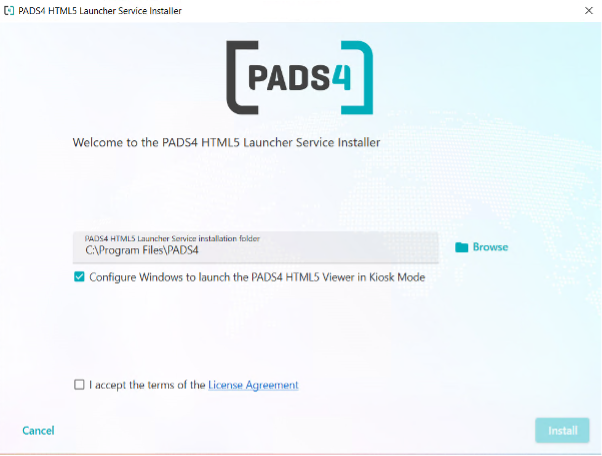
PADS4WindowsHTMLviewer.exeas Administrator. - Select the installation directory, or use the default.
- (Optional) Clear Configure Windows to launch the PADS4 HTML5 Viewer in Kiosk Mode if one of these applies:
- You want to use the Viewer as a screensaver.
- You want to run the Viewer under a regular Windows user.
- Accept the License Agreement, and then select Install.
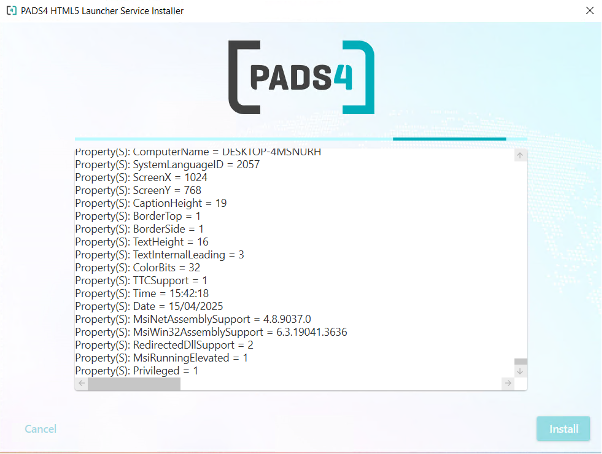
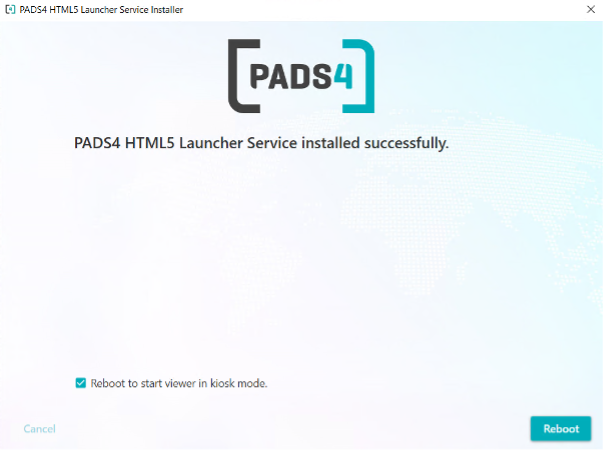
- When the installation is complete, select Reboot to restart the machine.
Connect the Viewer to the PADS4 Server
After the reboot, the Viewer starts in Kiosk mode.- Enter your PADS4 Server Address and Viewer Name.
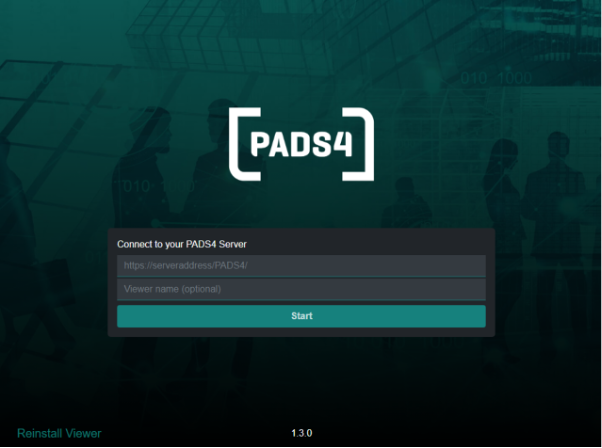
- Select Start to connect the Viewer.

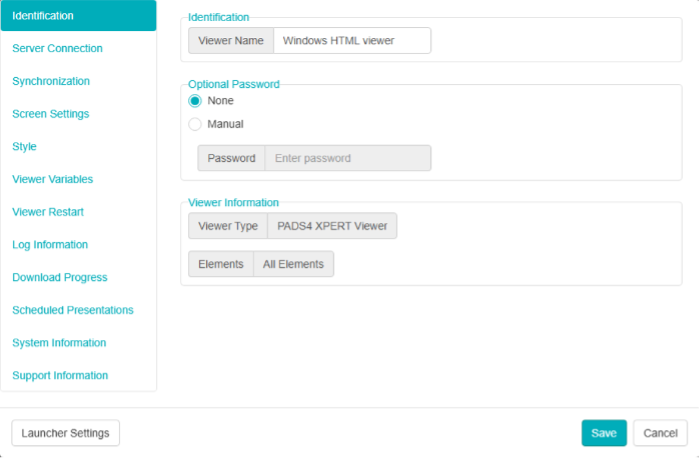
Switch to a regular user account
You can exit Kiosk mode and switch to a standard Windows account in three ways:- In PADS4 2025.2 and later, open the Viewer settings, go to Launcher settings, and then select Switch User in the lower-right corner.
- Use Remote Desktop, if configured, to log in with a different user account.
- Hold the Shift key while you reboot the machine. The Windows login screen opens.
Use the Viewer as a screensaver
- During the installation, make sure that Kiosk mode is not enabled.
- Open Screensaver Settings in Windows.
- Select Pads4viewer as the screensaver.
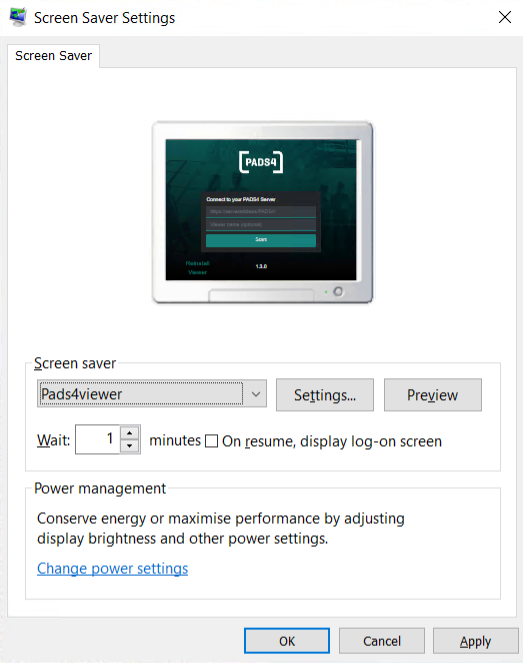
- Select Apply, and then select OK.