Create a Microsoft Azure Enterprice Application
To configure a Microsoft Entra Identity provider, you will need to connect to Azure as an Administrator and create a new enterprise application.- Go to https://portal.azure.com and sign in as an administrator.
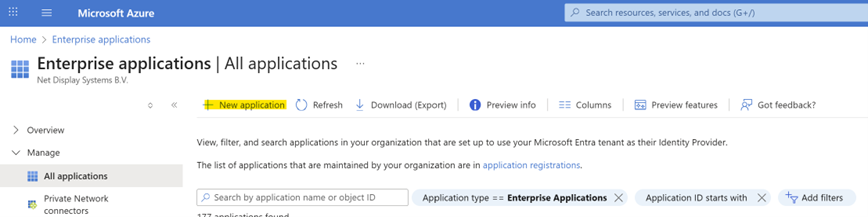
- On Azure, go to the Enterprise applications page
-
Click on New application
-
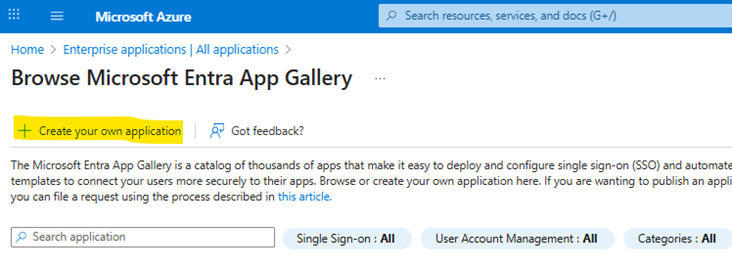
Click on Create your own Application
-
Fill in the information requested in the from. For example you can use PADS4
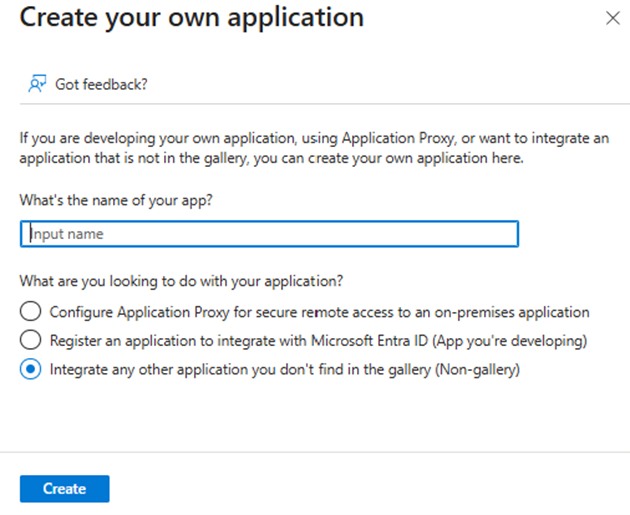
- Click the Create button
- Your application is now being created.
Setup Single Sign On configuration
Now that your application has been created, you need to enable and configure single sign-on.-
In the left menu, click on Single sign-on
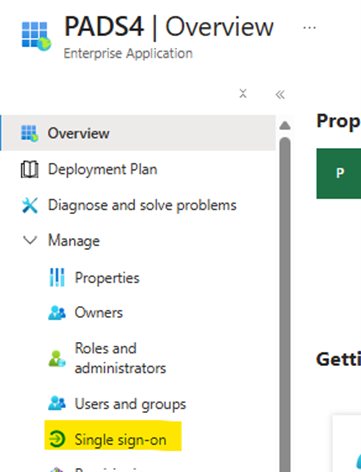
-
Select SAML as Single Sign-On methode
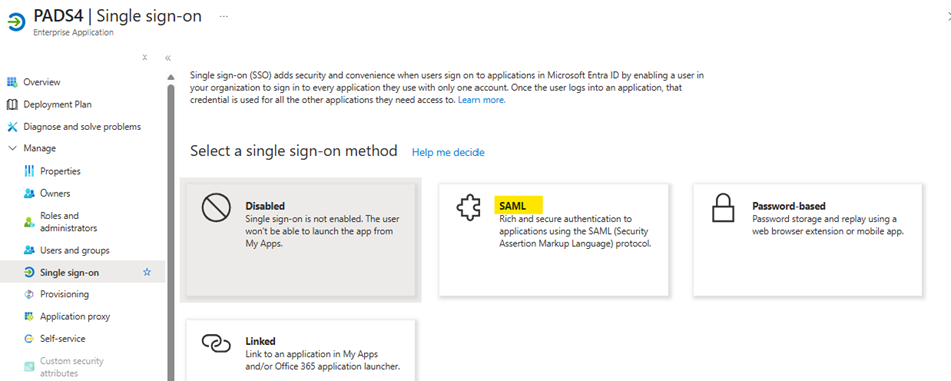
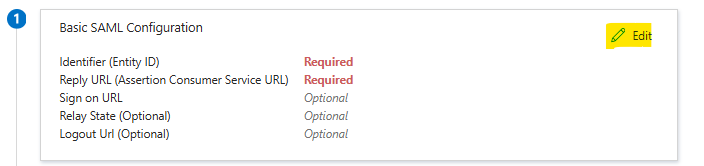
- For the Identifier use the PADS4 server address and add /saml (e.g. https://pads4.mycompany.com/saml)
- For the Reply URL use the PADS server address and add /rdx/nds.services/authentication.integration/api/v1/pads/Saml2/Acs (e.g. https://pads4.mycompany.com/rdx/nds.services.authentication.integration/api/v1/pads/Saml2/Acs)
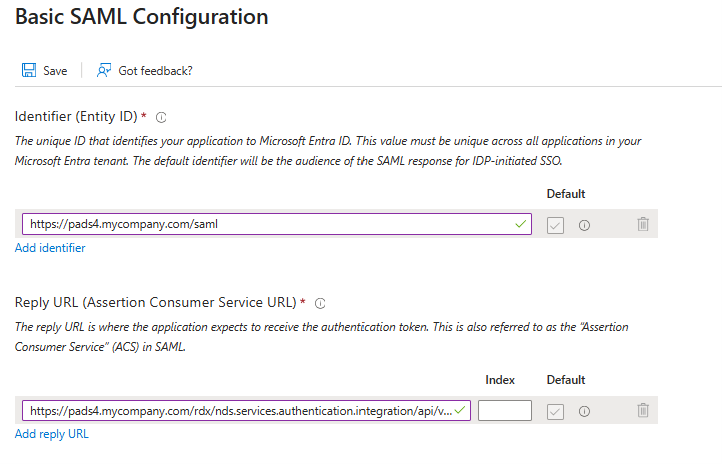
- Click on Save to apply the changes
Edit Attributes & Claims
-
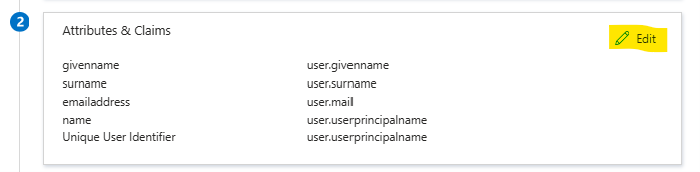
You need to edit the Attributes & Claims. Click on Edit to do so.
-
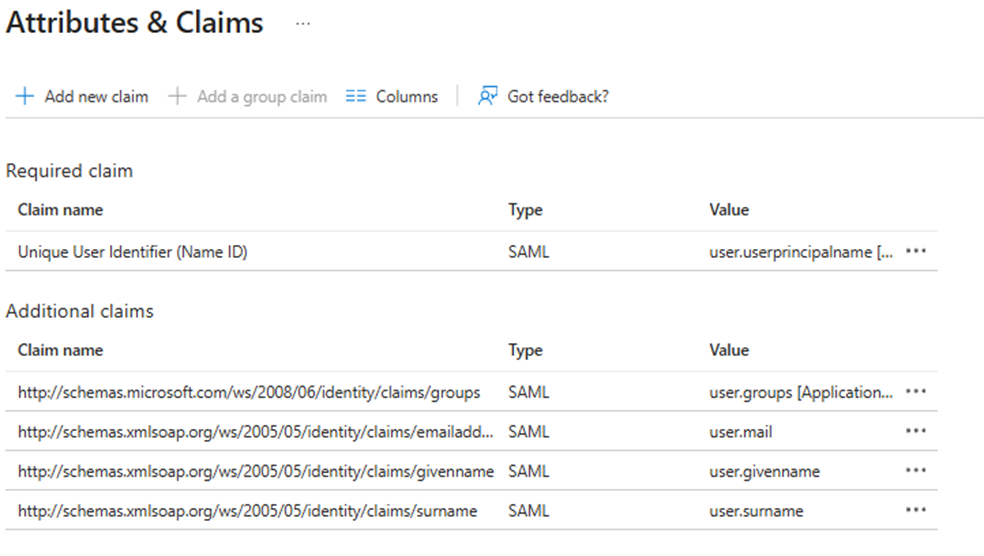
Edit the Attributes & Claims
Create the Group Claim
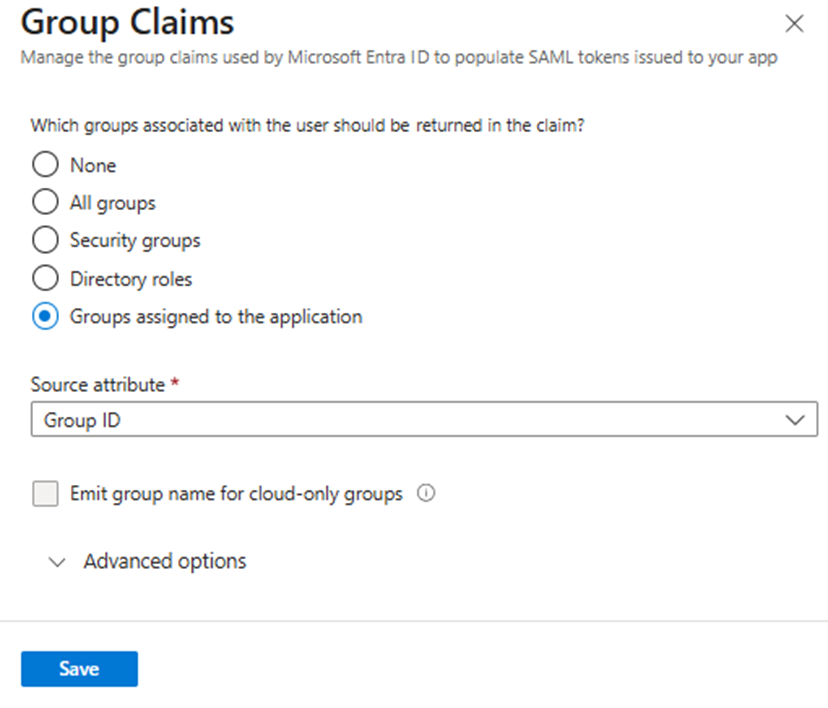
To map Microsoft Entra groups to PADS4 roles, configure the group claim:- Click Add new group claim.
- Select Groups assigned to the application (radio button).
- Choose Group ID as the source attribute.
- Click Save.
| Name | Type | Value |
|---|---|---|
| http://schemas.xmlsoap.org/ws/2005/05/identity/claims/emailaddress | Claim | user.mail |
| http://schemas.xmlsoap.org/ws/2005/05/identity/claims/givenname | Claim | user.givenname |
| http://schemas.xmlsoap.org/ws/2005/05/identity/claims/name | Claim | user.userprincipalname |
| http://schemas.xmlsoap.org/ws/2005/05/identity/claims/surname | Claim | user.surname |
| http://schemas.microsoft.com/ws/2008/06/identity/claims/groups | Group claim | user.groups |
Assign users and groups
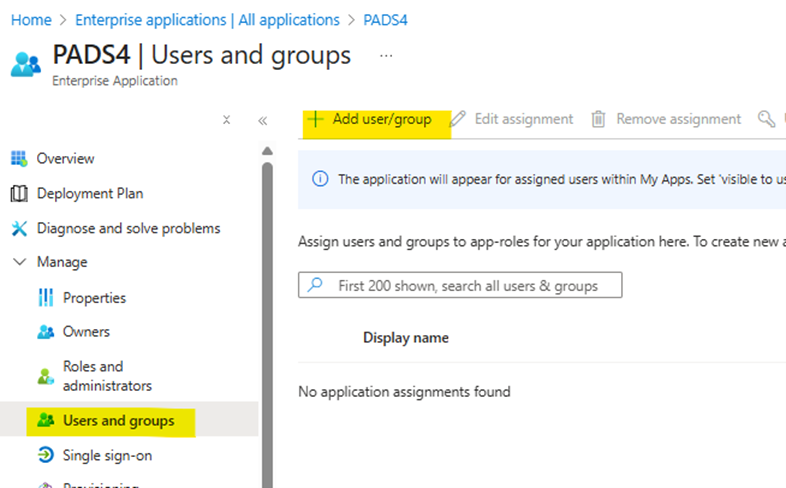
To specify which user groups can access the application, assign the appropriate user groups to it.- In the left menu, select Users and groups.
-
Click Add user/group to add a new group.
-
Click Users and groups, choose the group you want to assign, and then click Select.
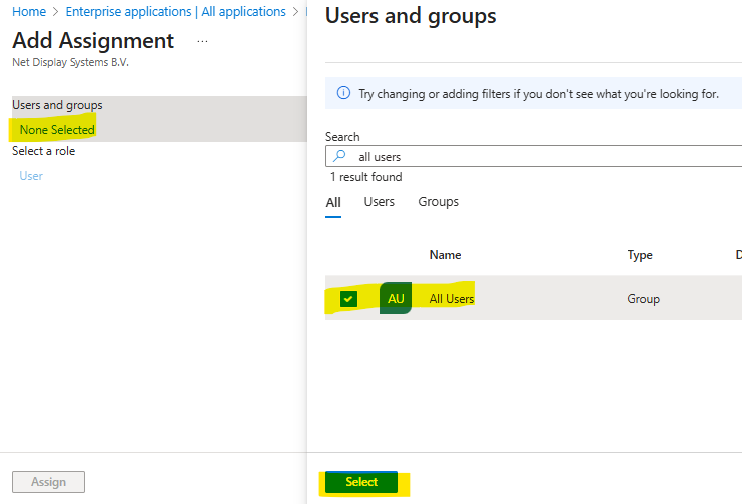
- Click Assign
Collect configuration data for the PADS4 identity provider
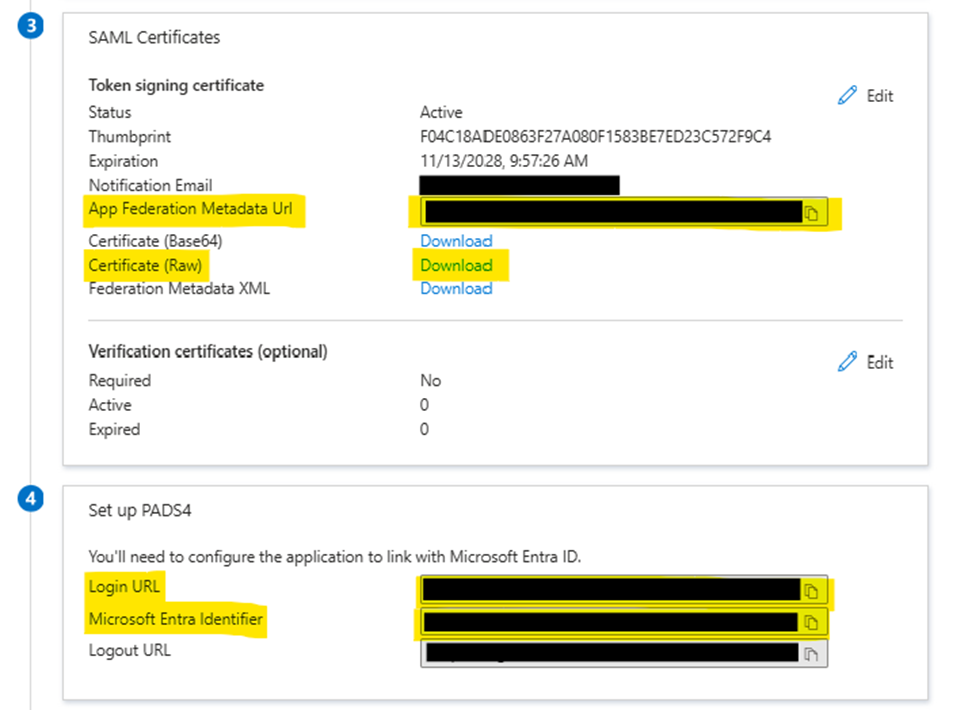
To create the identity provider in PADS4, gather these details from your Microsoft Entra configuration. Open the Single sign-on page and collect:- App Federation Metadata URL (e.g.,
https://login.microsoftonline.com/xxxxxxxx-xxxx-xxxx-xxxx-xxxxxxxxxxxx/federationmetadata/2007-06/federationmetadata.xml?appid=xxxxxxxx-xxxx-xxxx-xxxx-xxxxxxxxxxxx) - Certificate (Raw) – Click the link to download it (e.g.,
your-application-name.cer) - Login URL (e.g.,
https://login.microsoftonline.com/xxxxxxxx-xxxx-xxxx-xxxx-xxxxxxxxxxxx/saml2) - Microsoft Entra Identifier (e.g.,
https://sts.windows.net/xxxxxxxx-xxxx-xxxx-xxxx-xxxxxxxxxxxx/)
Set up the identity provider in PADS4
After creating your identity provider application, you also need to set up the corresponding identity provider in PADS4.Create the identity provider
To create the identity provider:- Log in to PADS4 and navigate to Adminstration
- In the left-hand menu, click Credentials.
- Click on Providers
-
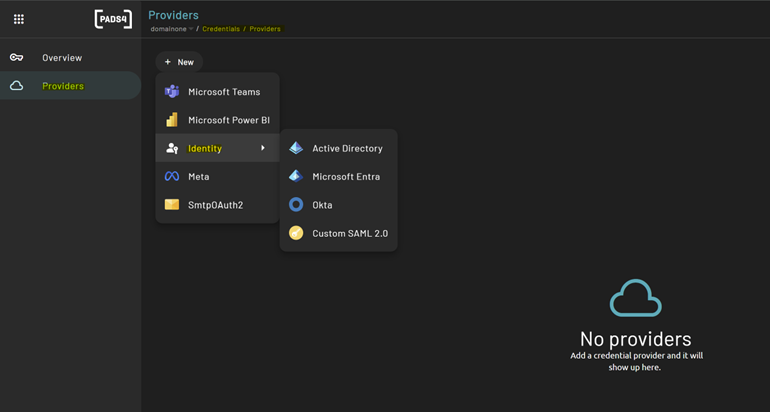
Click onNew and select **Identity **and Microsoft Entra
Fill in provider details
- Name – Enter a display name for the provider in PADS4
- Identifier – Enter the Microsoft Entra Identifier you collected earlier
-
Reply URL – Enter the URL of your local PADS4 application (e.g.,
https://pads4.mycompany.com). -
Metadata URL – Enter the Microsoft Entra: App Federation Metadata URL metadata URL you collected.
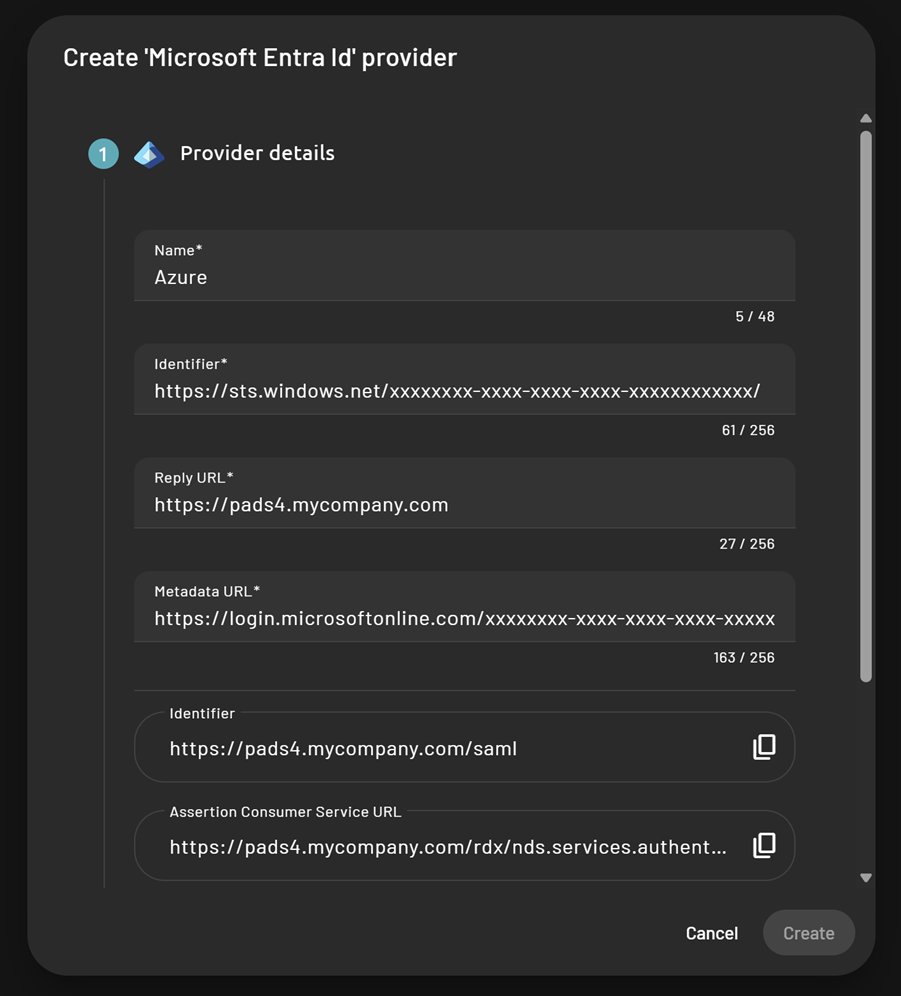
- The Identifier and Assertion Consumer Service URL are filled in.
Upload certificates
-
Provider Signing Certificate - Upload the Certificate (Raw) (
.cer) file you downloaded from your Microsoft Entra identity provider configuration. -
PADS4 Identity Provider Certificate - Upload a certificate (
.pfx) to sign SAML assertions from PADS4 to Microsoft Entra. -
**Password **- Enter the password for the uploaded
.pfxcertificate (below the certificate field).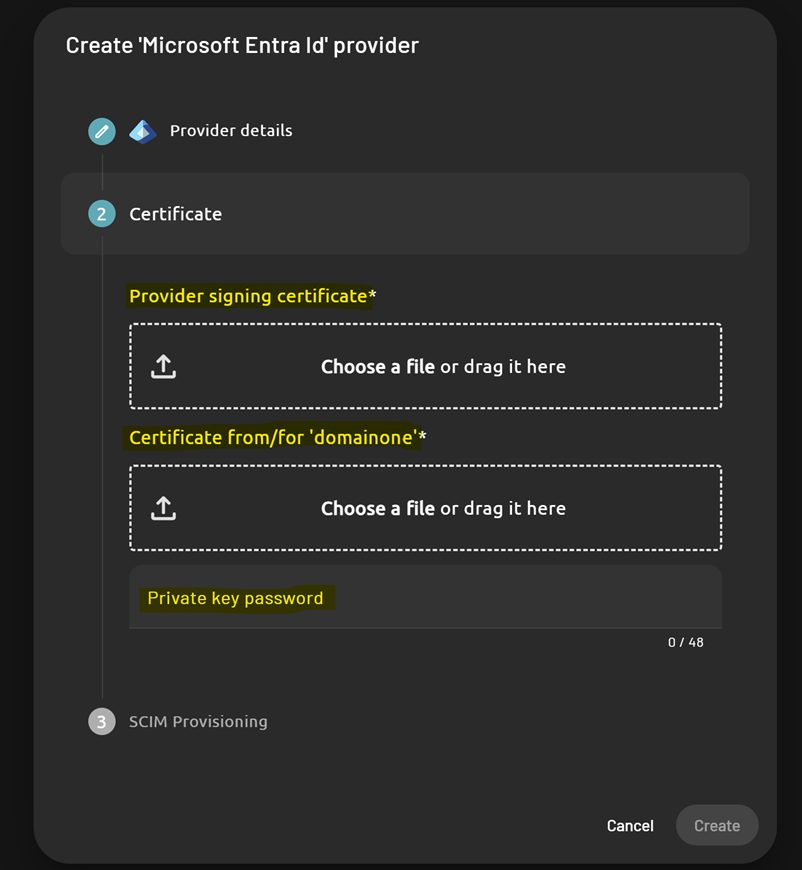
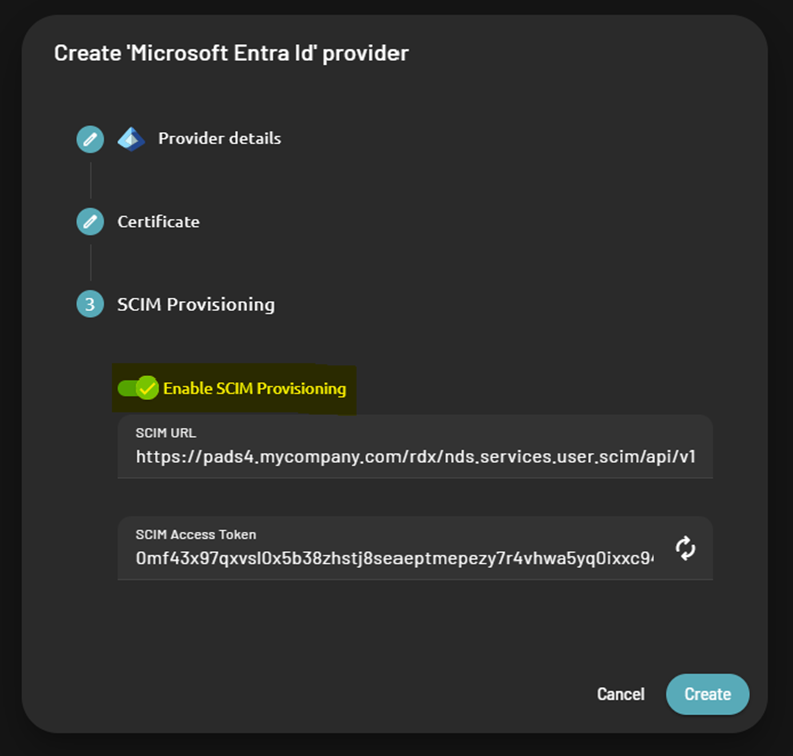
Enable SCIM Provisioning (Optional)
You can enable SCIM provisioning during identity provider creation. This feature synchronizes users between Microsoft Entra and PADS4, automatically creating, updating, or deleting users linked to the application. Once enabled, save these values for later use in your Microsoft Entra SCIM configuration:- SCIM URL
-
SCIM Access Token
Finalizing Microsoft Entra ID set-up
- Log out and refresh the PADS4 Portal.
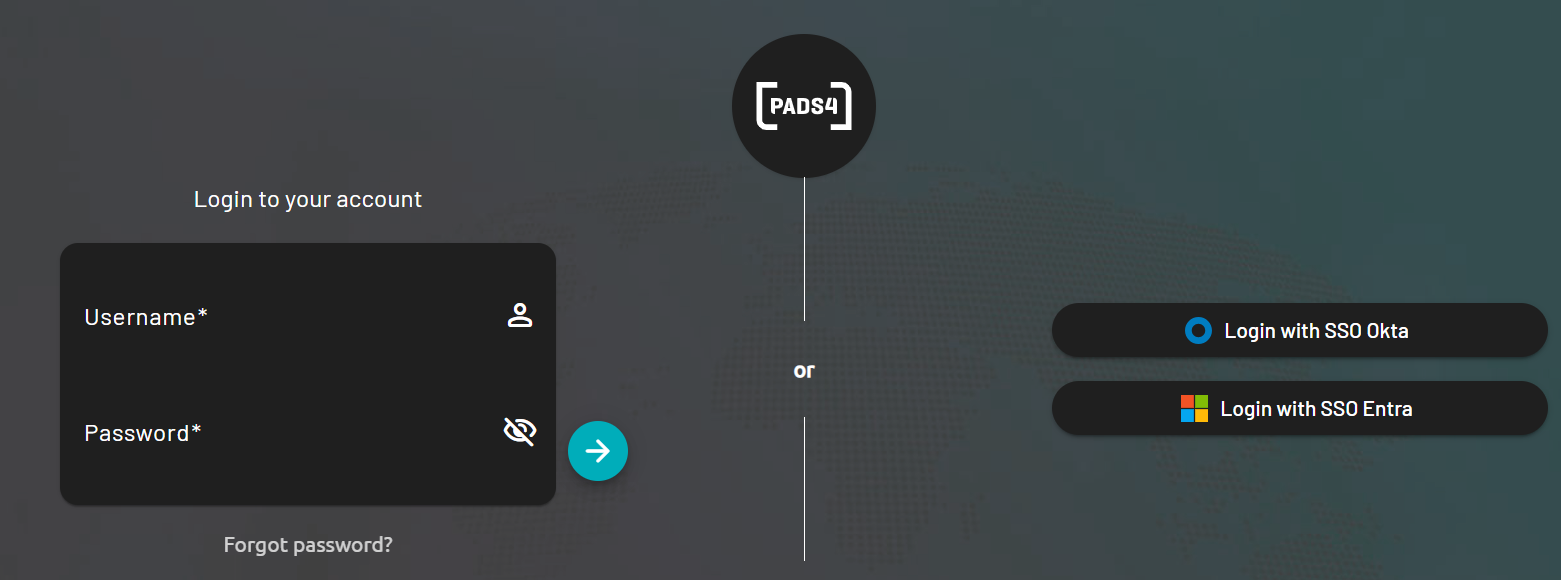
- The SSO Login button should now be visible.
-
Sign in using your Microsoft Entra credentials.