In our latest release, 2025.1, we are introducing our new user management system.
This fundamental change moves the User Management settings from the System Management application to the PADS4 Web Portal.
With this change, we have also introduced Roles to further refine the user management part of PADS4.
Roles will allow you to quickly assign a certain set of licenses and permissions to a user.
The new user management system is not compatible with Legacy CMS and Workspace in PADS4 version 2025.1,this has been added in PADS4 version 2025.2.
How to use roles in PADS4
The System Management and License Management licenses are required to administer your users and roles
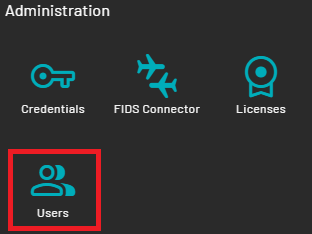
- You can access it by logging in to your PADS4 Web Portal with your Adminstrator account. Go to Dashboard, and on the bottom left go to Users.
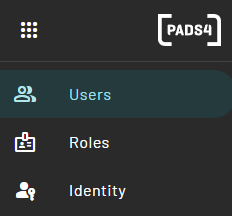
- On the left-hand side you can switch between the Users and Roles
- In the user’s overview, you will see the users and their corresponding information as:
- Name
- Username
- Roles
- License

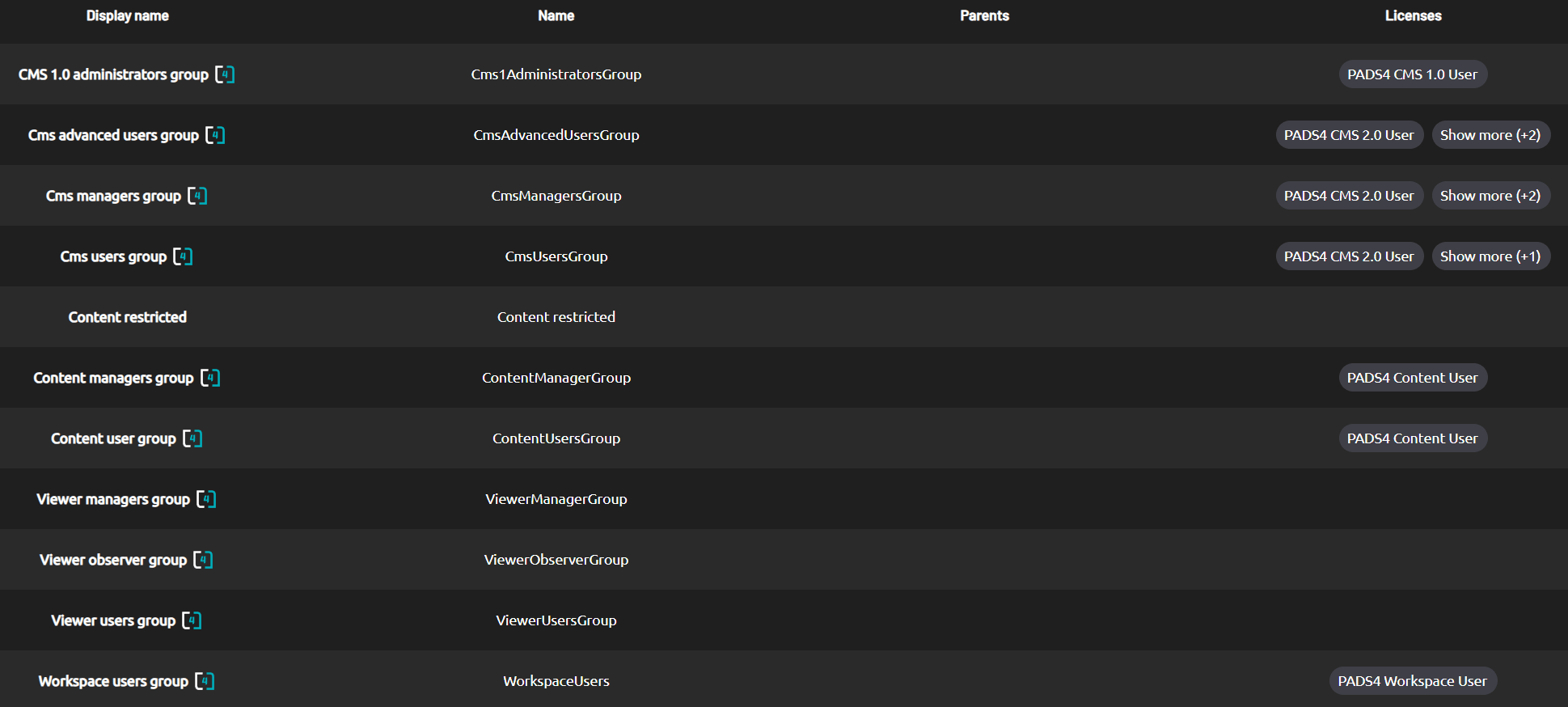
- In the Roles section, you will get the following overview of the roles that are available, including the default roles, which are explained below.
Search for Users
Use the search function to quickly locate specific users in the system. It searches across key fields: Name, Username, Roles, and License. This is ideal for admins managing PADS4.
How to Search
- Enter keywords in the search box (e.g., “john.doe”, “admin role”, or “Cms users group”).
- Results filter dynamically as you type—no need to hit Enter.
Export Results
Click the Export button to download results as Excel. This expands the view for bulk analysis or reporting. Exported data includes all visible columns for easy import elsewhere.
Default roles
In PADS4 version 2025.1 there are five default roles, since PADS4 version 2025.2, five additionel roles have been added which are listed further in the article.
CMS Advanced users group
| Application | Access | Inheritance |
|---|
| Web Designer | Read/Write/Delete | |
| CMS | Read | |
| Content | Read/Write/Delete | Content users group |
CMS Manager group
| Application | Access | Inheritance |
|---|
| CMS | Read/Write/Delete | |
| Users | Read/Write/Delete | |
| Content | Read/Write/Delete | Content users group |
CMS User group
| Application | Access | Inheritance |
|---|
| CMS | Read | |
| Content | Read/Write/Delete | Content users group |
Content Managers group
| Application | Access | Inheritance |
|---|
| Content | Read/Write/Delete/Modify | |
Content User group
| Application | Access | Inheritance |
|---|
| Content | Read/Write/Delete | |
With the release of PADS4 version 2025.2, the below default roles has been added.
Do note that the viewer roles require an Agent or System Management ( Only for on-offline status / removal of viewers ) license to be effective outside of CMS2.0, as the roles are purely to set permissions once access have been granted by the license that has been assisgned to the user.You can choose to adjust the default viewer roles to add this license automaticly to the user which has this role assigned.
Viewer manager group
| Application | Access | Inheritance |
|---|
| Viewers | Read/Write | |
| Restrictions | | |
| No restrictions | | |
Viewer observer group
| Application | Access | Inheritance |
|---|
| Viewers | Read | |
| Restrictions | | |
| Unable to restart / reboot viewers | | |
| Unable to change access permissions | | |
| Unable to change viewer settings | | |
Viewer user group
| Application | Access | Inheritance |
|---|
| Viewers | Read/Write | |
| Restrictions | | |
| Unable to change access permissions | | |
| Unable to change viewer settings | | |
Workspace users group
| Application | Access | Inheritance |
|---|
| Workspace | Read/Write | |
CMS 1.0 administrators group
| Application | Access | Inheritance |
|---|
| CMS 1.0 | Read/Write | |
Customizing roles
- You can edit these roles to your preferred configuration, or you can make your own Roles where you can specify any other roles that it is a member of, or assign certain licenses.
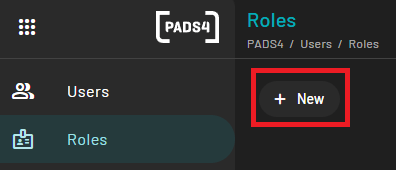
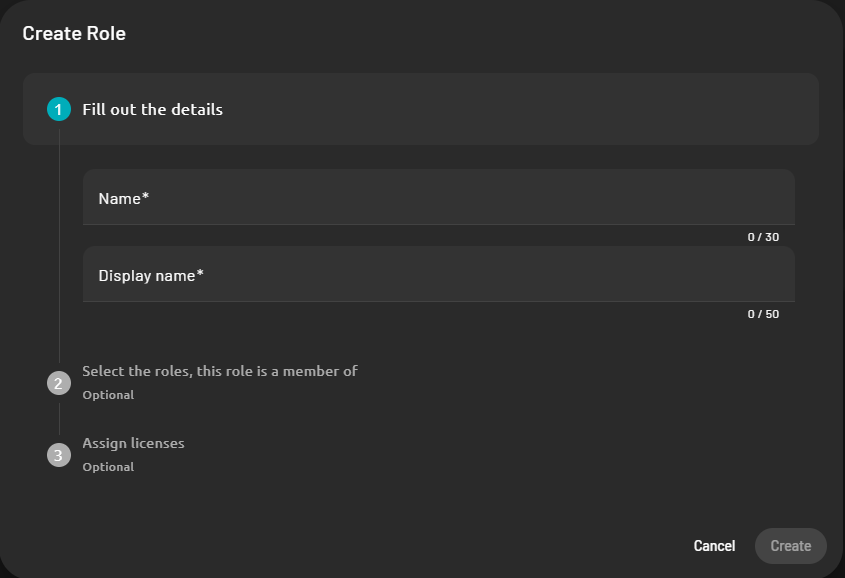
- With these roles or the self-created roles, you can then further specify the access that you grant users with a certain role to application available in the PADS4 Web Portal.
Content library
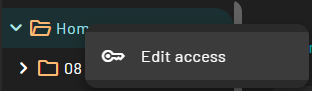
- Right click on the folder that you want to change/review access for and press “Edit access”
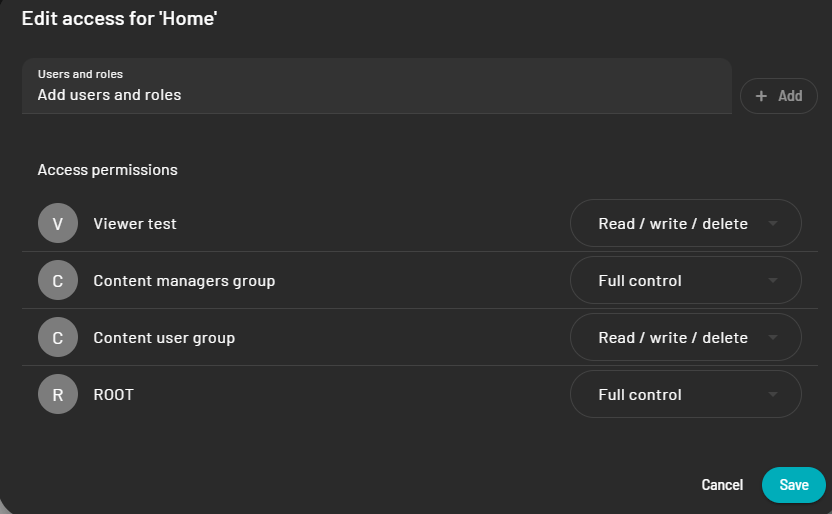
- An overview of the roles and users with their rights on this particular folder will show and allows you to add or remove roles and users.
Web designer category’s
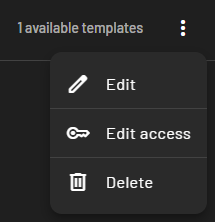
- Click the 3 dots on the right of your category and click on “Edit access”
Web designer templates
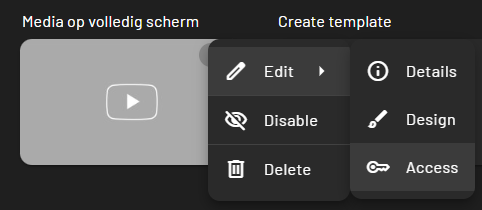
- Hover your mouse on a template and click the three dots, click on “Edit access”
Viewers & Viewer groups
- In Tree view, right click on the viewer group and click on “Edit Access”
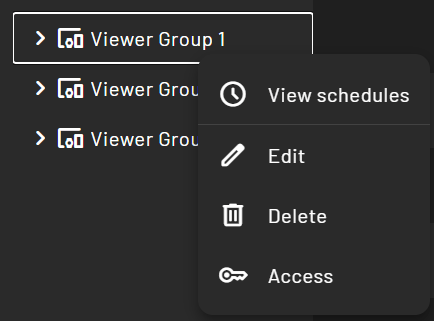
- In Detail view, hover your mouse on either the viewer group or viewer and press the three dots to “Edit access”.