Prerequisites and steps to upgrade an existing PADS4 installation to version 2025.2, including user management migration and viewer role changes.
To upgrade to PADS4 2025.2, your current version must be at least 2022.3, meaning PADS4 2022.3 must be installed and running first.Versions 2022.2 or earlier will not auto-update to 2025.2; you must first perform an intermediate upgrade to 2022.3.
User Accounts and Security UpdateAs of version 2025.1, the default users User1 and Administrator have been removed to enhance security. During setup, you must create a new user account. You create this user with the Root user, whose password you define during the installation process.
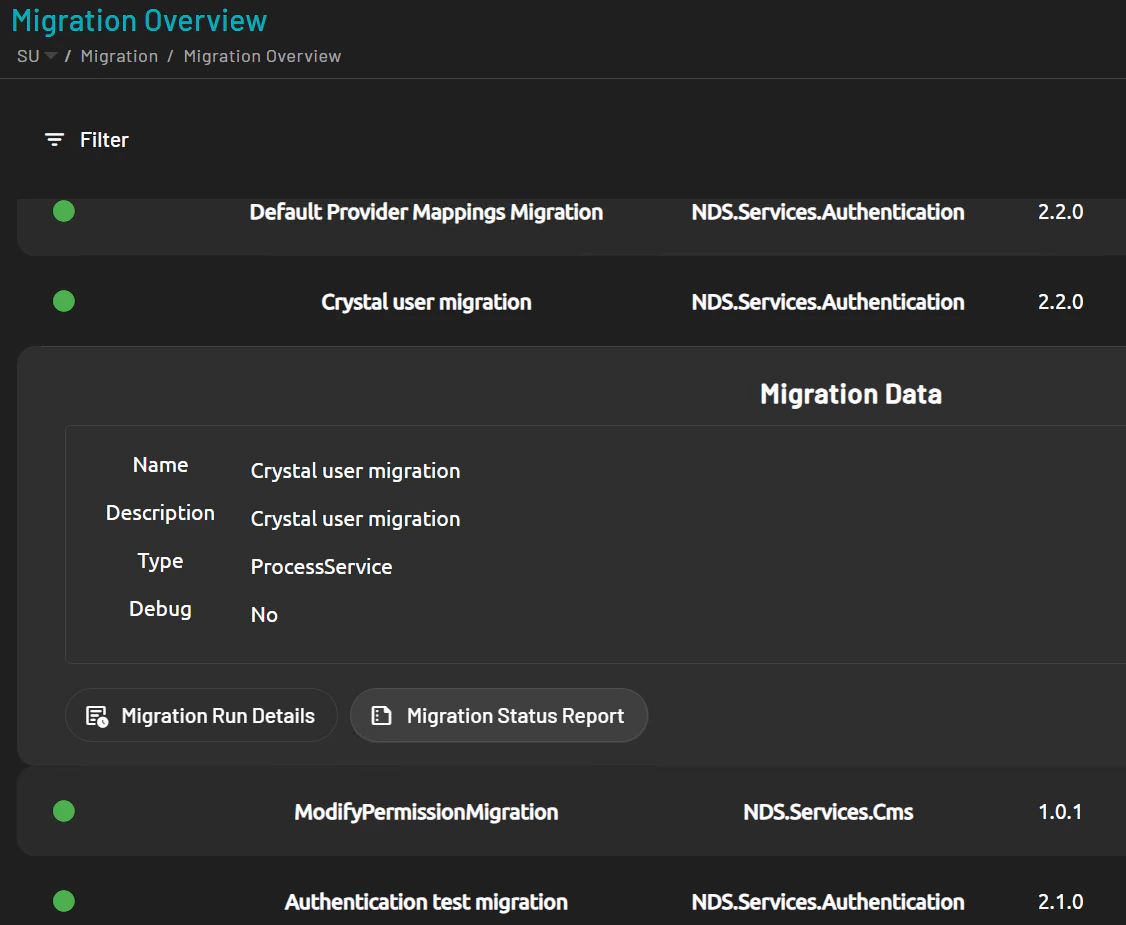
User management for PADS4 Workspace and PADS4 CMS 1.0 has been migrated to PADS4 CTRL Center, allowing all users to be managed from a single, centralized location.This migration includes all PADS4 Workspace and CMS 1.0 users, licenses, and assigned roles, which are automatically transferred to PADS4 CTRL Center during installation. After the installation, you can review the migration process by logging in to the web portal with your Root account and navigating to Migration.In this section, you’ll find an overview of all migration steps. By selecting an item, you can view detailed information in Migration Run Details or open the Migration Status Report for a full summary.
You must apply this change before the update to 2025.2. You can apply it at any time before the migration, as it does not affect the current installation.
From PADS4 version 2025.2, the expected Reply URL on the external identity provider changes to support multi-domain usage.To keep PADS4 SSO working as before, you must add an additional domain-specific Reply URL to the existing Azure Enterprise Application used for PADS4.Follow these steps:
In this example, pads is the domain segment added to the existing Reply URL. If your domain is different from the default pads domain, replace pads in the URL with your own domain value.
Click Save at the top of the panel to apply the changes.
After the migration is complete, you may not see any viewers listed when you log in, even though all licenses are available. This is because three new roles have been introduced to manage viewer access.
To view or modify viewer settings, you must have one of the viewer roles assigned to your user account. For more information, see User and Roles in PADS4 CTRL Center → Administrator → User Management.