

Adding multiple PADS4 Servers
Before you can start using multiple PADS4 Servers, you have to make sure that all PADS4 Servers involved have been defined in the system. For more information about adding a PADS4 Server connection, see Managing your connections.Connecting multiple PADS4 Servers
When using the PADS4 Agent application, you can decide yourself to which of the defined PADS4 Servers you want to be connected. For each PADS4 server you want to connect, you must follow the procedure as described at Connecting to your PADS4 Server. When you have specified for one or more of your PADS4 Server connections that you want to connect automatically, PADS4 Agent will automatically connect to these PADS4 Servers at start-up of the application.Using the navigation pane with multiple connected PADS4 Servers
After you have successfully connected to multiple PADS4 Servers, the bottom of the navigation pane will show a list of all your connected PADS4 Servers. For each of your connected PADS4 Servers you can use the navigation pane to select an information category and get access to the many built-in server functions or viewer functions of the application. To select an information category of a PADS4 Server:-
Click on the PADS4 Server at the bottom of the navigation pane.
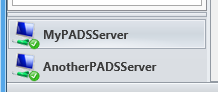
- Follow the procedure for selecting an information category, as described at using the navigation pane.
Disconnecting PADS4 Servers
To disconnect one of your connected PADS4 Servers:-
Click Disconnect on the Home menu.
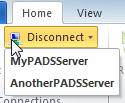
- From the drop-down list of connected servers, select the server to disconnect.